Skip to main content Skip to footer

How to add alt text to an image

Learn how to add alternative text (alt text) to images in uSkinned Site Builder for Umbraco CMS to improve website accessibility and search engine optimisation (SEO).


Why is image alt text important?

Alt text provides a written description of an image, making your website more accessible and helping search engines better understand your content.

The key benefits of adding alt text include:

Accessibility

Helps visitors using screen readers understand the content and purpose of an image.

SEO

Helps search engines understand and index your images, improving their potential visibility in search results.

User experience

Provides context when an image cannot be loaded.

Accessibility compliance

Helps your website meet Web Content Accessibility Guidelines (WCAG).
When writing alt text, keep it concise, descriptive and relevant to the context of the image. Avoid keyword stuffing and leave alt text empty for purely decorative images.


Step 1

Log in to the CMS.

Step 2

Go to Media.

Step 3

Upload or navigate to any image. 

Step 4

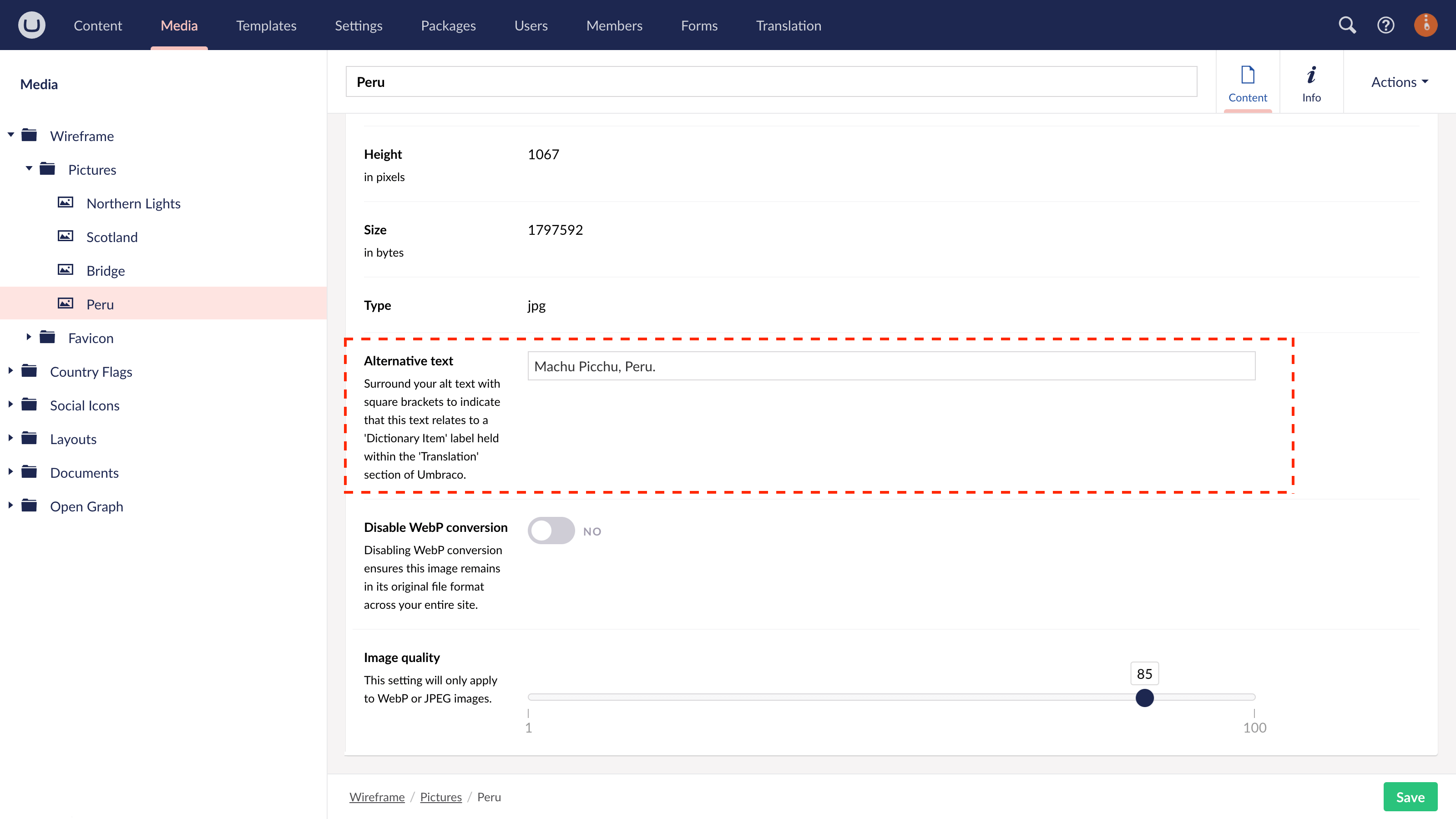
Go to the label "Alternative text" and use the field to enter a short description of the image that will be used by screen readers and search engines.

Alternative text in uSkinned for Umbraco.

Step 5

Save the image.

Now, your image will provide alt text to improve the experience of all users on your website and boost your search engine optimisation.

#h5yr

Ready to start your next project?

See why uSkinned Site Builder for Umbraco consistently ranks as the best.


🏆 Voted Best Website Builder on CMS Critic G2: real software reviews.

⭐ ⭐ ⭐ ⭐ ⭐ 4.9 out of 5 on G2 G2: real software reviews.