
How to embed PDF documents with Adobe PDF Viewer
Embed the Adobe PDF Viewer widget on your uSkinned Site Builder for Umbraco website using one of the many embed HTML options.
Adobe PDF Viewer allows you to embed PDF documents directly into your website, giving visitors an easy way to view, navigate, search, print and download PDFs without leaving the page.
Create Adobe Credentials
Step 1
Create your Adobe credentials.
Visit the website and follow the steps to create your free credentials.
Step 2
Once your credentials are created, copy your Client ID (API Key). You'll need this when embedding PDFs into your uSkinned website.
Please note: Both Step 1 and Step 2 are one-off setup steps. You can reuse your Client ID whenever you embed another PDF on the same website.
Embed the PDF Viewer
Step 1
Log in to the CMS.
Step 2
Go to Media and upload your PDF file.
On the Media item, go to the Info tab and copy the full PDF URL — you will need this later.
Step 3
Go to any page (or create a new page).
Step 4
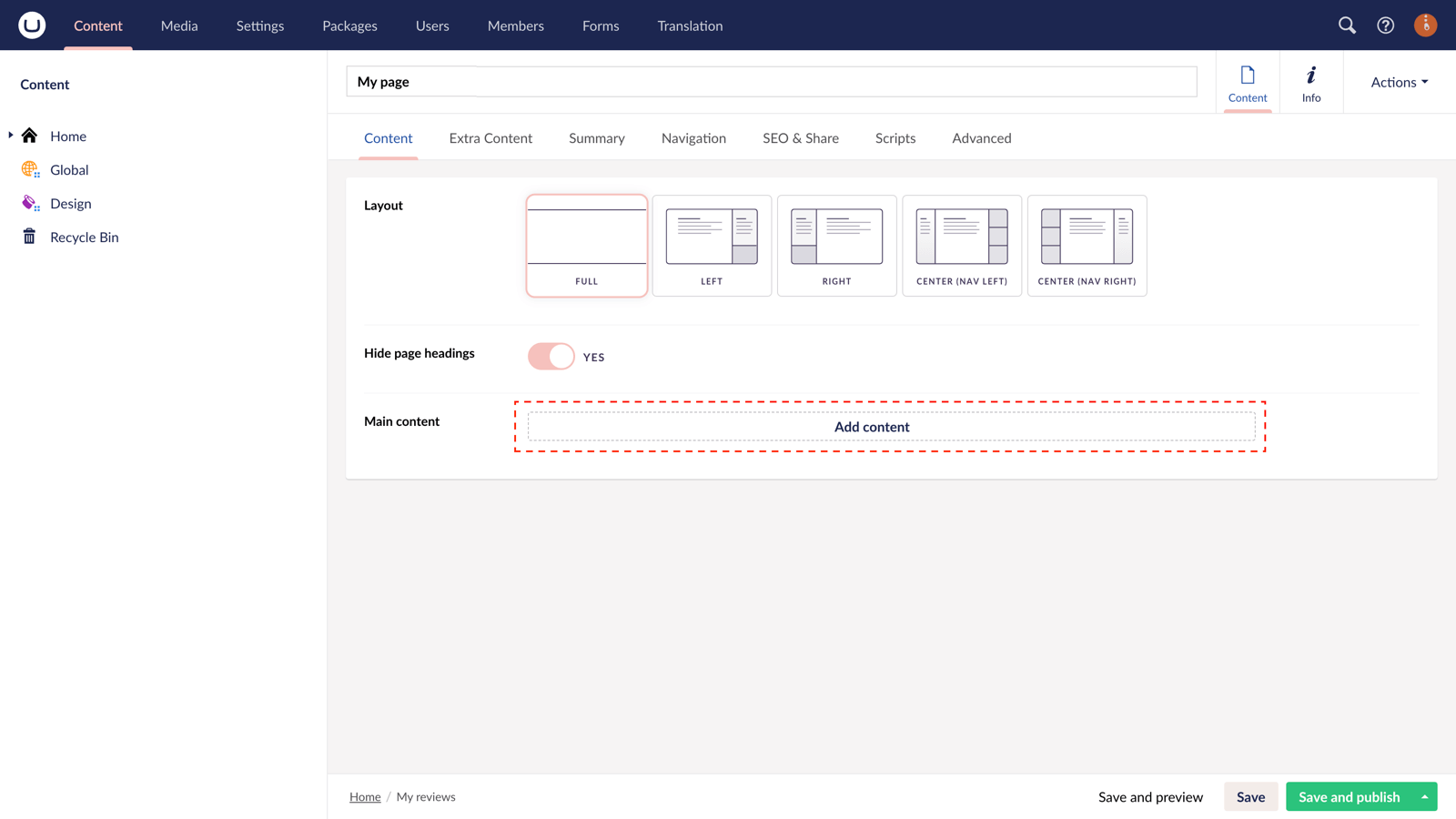
At "Main content", click "Add content".
Step 5
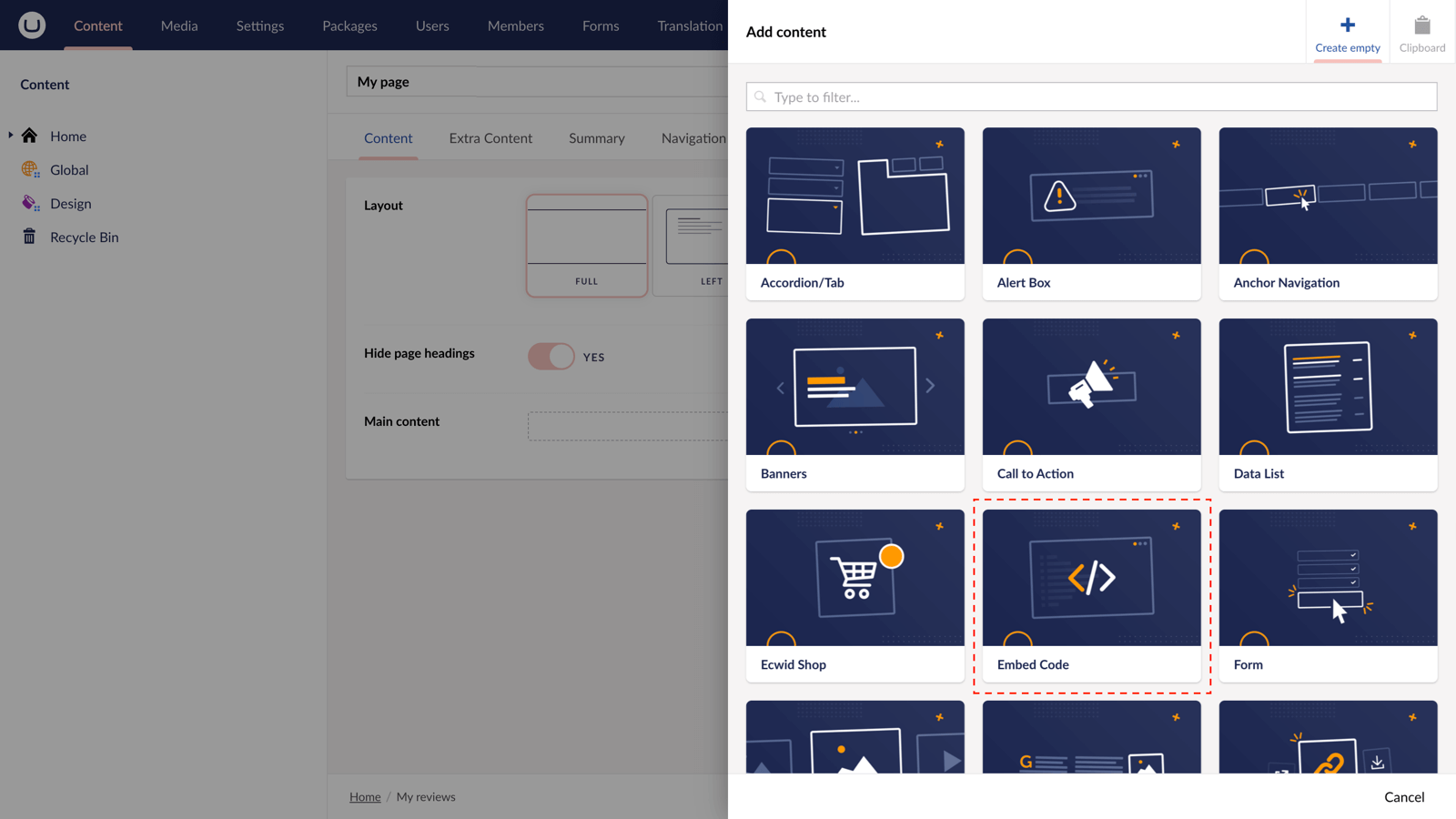
In the slide-out panel, choose the "Code" component.
Step 6
Copy the embed code below.
<div id="<UNIQUE ID — CAN BE ANYTHING>" style="height: 560px; width: 100%;"></div>
<script src="https://acrobatservices.adobe.com/view-sdk/viewer.js"></script>
<script type="text/javascript">
  document.addEventListener("adobe_dc_view_sdk.ready", function(){
    var adobeDCView = new AdobeDC.View({clientId: "<ADOBE CLIENT ID>", divId: "<UNIQUE ID — CAN BE ANYTHING>"});
    adobeDCView.previewFile({
      content:{ location:
        { url: "<PDF FILE PATH>"}},
      metaData:{fileName: "<PDF FILE NAME>"}
    },
    {
      embedMode: "SIZED_CONTAINER"
    });
  });
</script>
Make sure to update the following:
id="<UNIQUE ID — CAN BE ANYTHING>" — this must match the divID, but unique to an single PDF viewer

clientId: "<ADOBE CLIENT ID>"

divId: "<UNIQUE ID — CAN BE ANYTHING>" — this must match the id, but unique to an single PDF viewer

url: "<PDF FILE PATH>"

fileName: "<PDF FILE NAME>"
Step 7
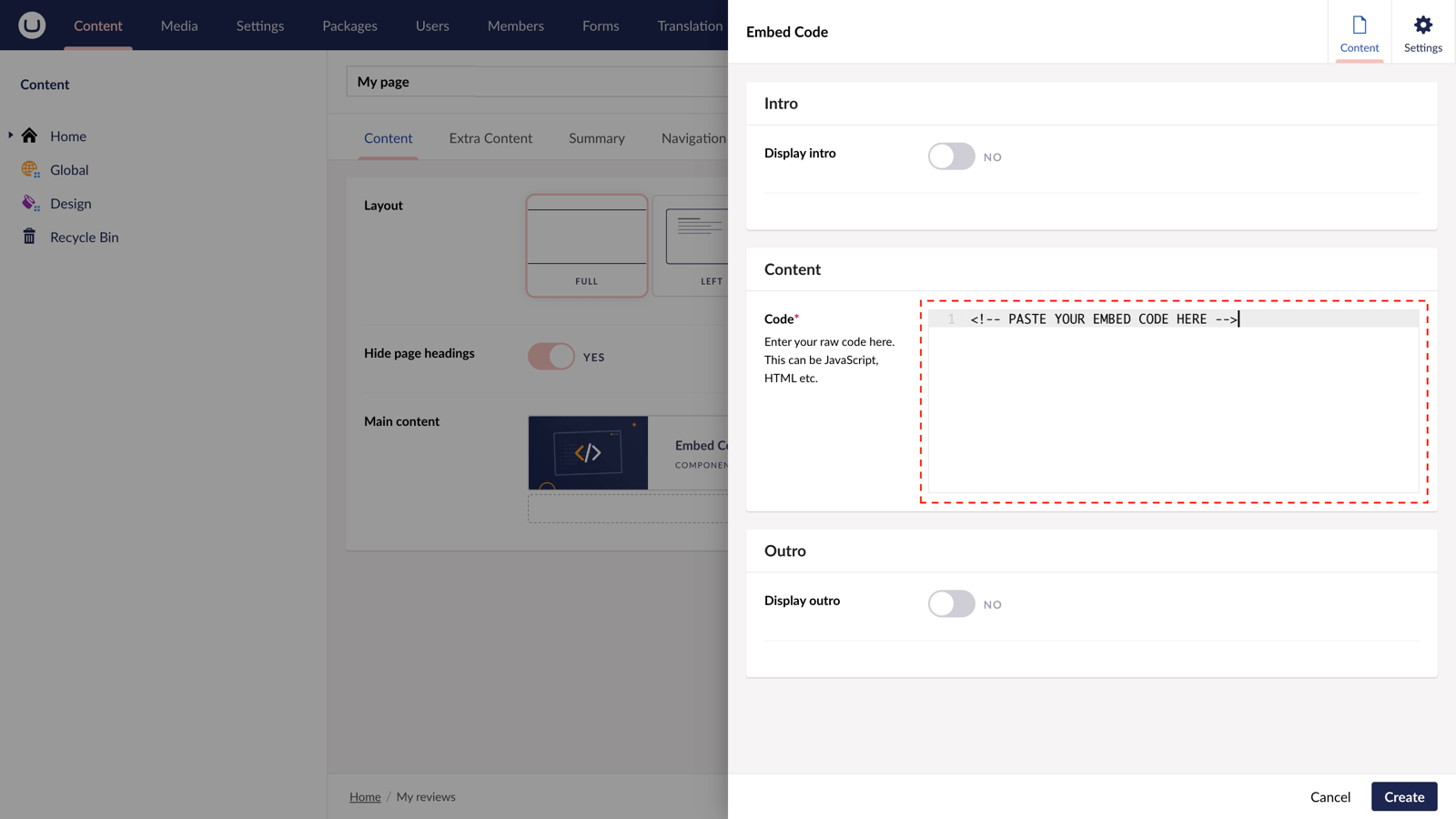
In the "Code" field, paste the code you copied above from the third-party provider.
In the bottom-right, hit Submit.
Step 8
With the slide-out panel closed, hit 'Save and publish' in the bottom-right of the screen.
Step 9
Now your Adobe PDF Viewer widget is visible on the frontend of your site.
More ways to display Adobe PDF Viewer Widgets
There are lots of places you can embed PDF Viewer Widgets on your uSkinned Site Builder website.
You can try this out using the same steps for:
— Pods component > Embed Code
— Split component > Embed Code block
— Global components > Embed Code
— Global pods > Embed Code
— Extra Content > Top Components > Embed Code
— Extra Content > Bottom Components > Embed Code
— Extra Content > Pods > Embed Code
— Footer pods > Embed Code
#h5yr


Ready to start your next project?
See why uSkinned Site Builder for Umbraco consistently ranks as the best.


