
How to view, change or cancel active Subscriptions
Use this guide to manage any active Subscriptions you hold with uSkinned via our payment gateway, Stripe. This can include Licenses, Hosted Websites, and Reseller Memberships.
Step 1
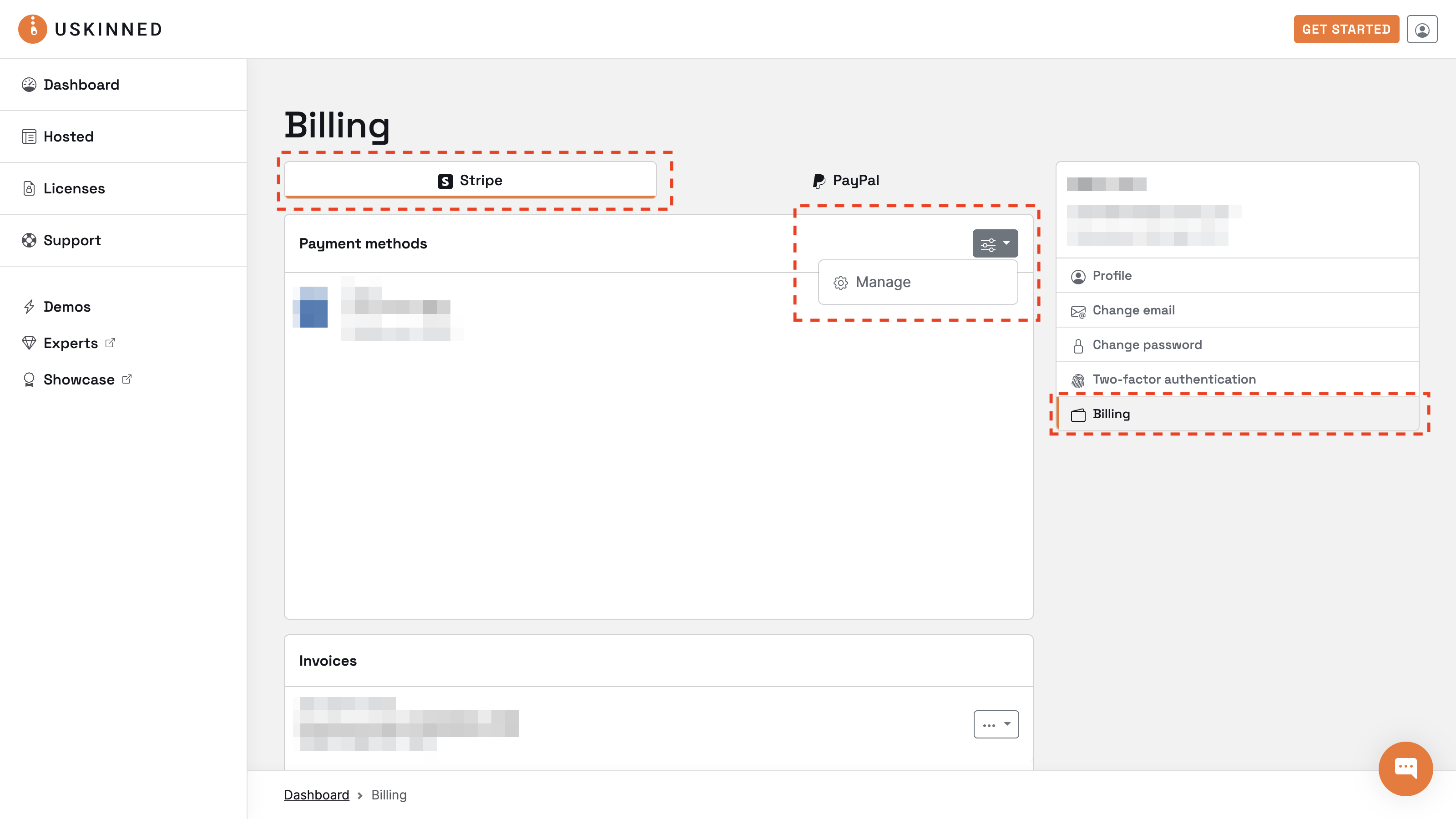
Go to the uSkinned customer portal and log in. From the uSkinned customer portal, you can use the link on the dashboard or the User Navigation in the top-right corner.
Step 2
Use the “Actions” menu on the right-hand side of the Payment Method title and click "Manage".
Step 3
You will now be redirected to Stripe, our Payment Provider.
Step 4
You will see a list of your active Subscriptions. Use the options to view, change or cancel any Subscription.
Please be careful. Do not cancel the wrong subscription.
Step 5
Once you are happy, use the “Return” link on the left-hand side and return to the uSkinned customer portal.
#h5yr
If you run into any issues, contact support.
Related content
Step 3
Create
Create content with the Visual Editor and utilise built-in eCommerce and integrations.
Step 4
Go Live
You can host securely on Azure with uSkinned Hosted, or go your own way with a Self-Hosted license.
